
The OCAD workflow
Two exports from one file, at one resolution. The fastest and most accurate way in.
Routster needs two views of every map: the colour map a player sees, and the impassability map that decides where a generated route may go. Exported from OCAD they are two renders of the same file and line up exactly, so this route skips both the automatic detection and the editing step.
The procedure is two exports, which have to match.
A: the colour map
Step 1. File → Export
Step 2. Set the resolution to 508 DPI
Step 3. Select Entire Map
Step 4. Save the .tif
B: the impassable-objects map
Step 1. Switch to the impassable-objects view
Step 2. Save as TIF
Both files must describe the same rectangle at the same resolution
Uploading
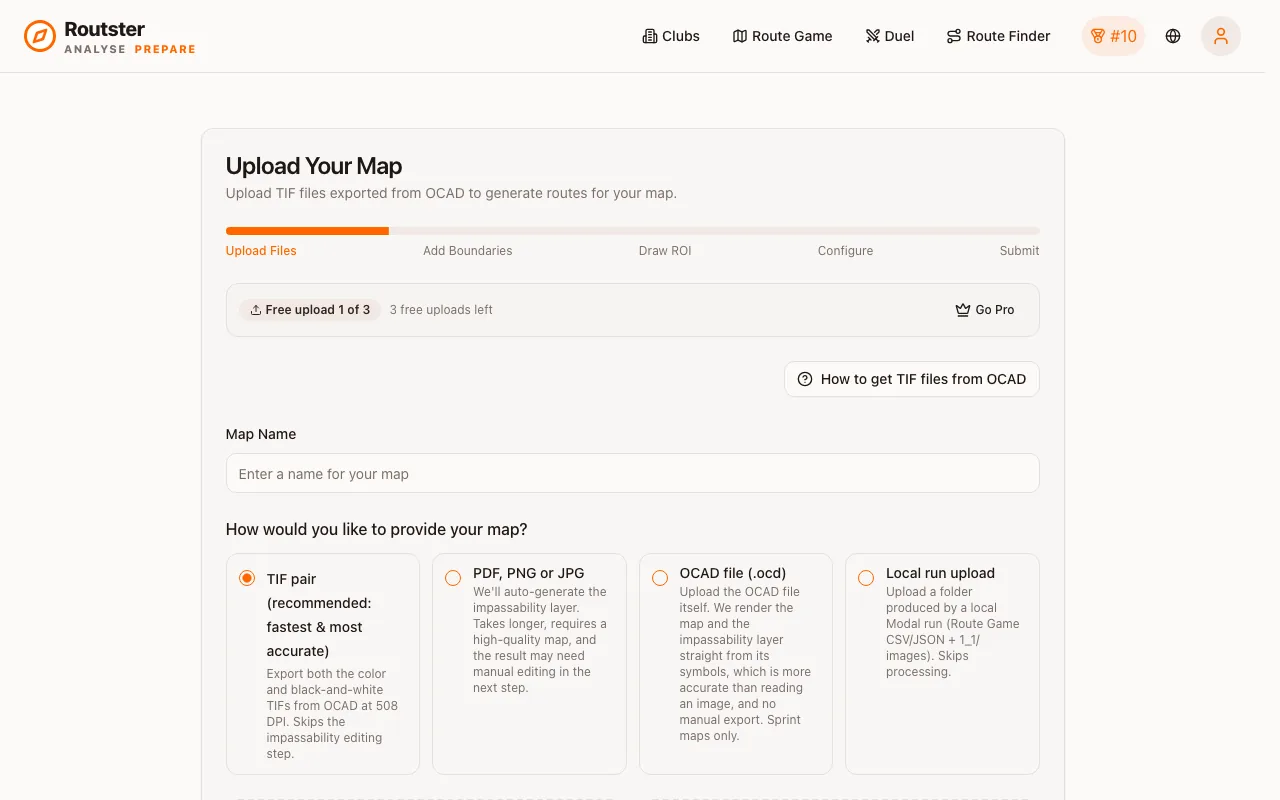
Choose the TIF-pair option and upload both. There is no impassability generation step and no editing step: the mask comes from the map's own objects rather than from a colour analysis of an image of them.
What you gain over an image upload
| TIF pair | PDF / PNG / JPG | |
|---|---|---|
| Impassability layer | Exported from the map's objects | Detected from the image, then edited by hand |
| Extra processing time | None | One to three minutes, plus your editing |
| Accuracy at boundaries | Exact | Good, with gaps you have to find |
| Effort | Two exports | One upload and a careful review |
Then tune the generation
The generation parameters decide how many challenges come out of the map, how hard they are, and how different the alternatives have to be. See the parameter guide, and common pitfalls for what to check before publishing.