
Uploading an event
The organiser's job. Two timing rules decide whether everybody else's analysis works.
One organiser publishes the event and every runner in the class can then add their run to it.
The two timing rules below are conventions rather than things the software enforces.
Short on time? Email the files
Rule 1: release time is the last start
Set release to the moment the last competitor starts
Until the release time passes, the event page shows a countdown and nothing else: no map, no courses, no runs. Every surface that would show a map thumbnail (the events list, the home page, the club page) shows a placeholder and does not request the map.
When the countdown reaches zero the page unlocks and refetches itself.
Why the last start specifically:
- Earlier lets a competitor still waiting to start open the event and read the course.
- Later keeps finished runners waiting, and relies on the organiser unlocking it by hand.
- The last start is on the start list, so it is known in advance.
Event admins are exempt from the lock, so the upload can be checked beforehand. Who counts as an admin is set by the admin scope setting: just you, or every member of the organising club.
An event with no release time is visible immediately
Rule 2: result file within an hour of the last finish
Upload the IOF result list within an hour of the last runner finishing
Without split times a runner gets their own line on a map. With them they get leg ranks, place progression, time lost measured against their own level, and an AI review that can discuss the field. Four things depend on the file:
| Depends on splits | Without them |
|---|---|
| Field comparison: leg ranks, place progression, the whole split-times panel | Not shown at all |
| Time lost per leg, measured against the runner's own level | Falls back to the GPS mistake detector, which is a weaker signal |
| The mistake count in the headline | Counted from GPS heuristics instead of from the class's own times |
| The AI coach | Held back entirely, by default, until splits arrive |
Within the hour, runners are still at the arena and will open their analysis the same evening. Anyone who opens the event before the file lands gets the reduced version described above.
What to upload
An IOF XML 3.0 result list. In MeOS: export, then choose the IOF XML 3.0 result-list variant. One file covers every class in the event.
The parser is strict about what it will accept, and says why when it refuses:
| What you dropped | What you get told |
|---|---|
| A start list | That is a start list, which has no split times in it |
| A course file | That is a course file, not results. It belongs in the course step |
| IOF XML version 2 | Export as IOF XML 3.0. In MeOS, choose the 3.0 variant |
| An entry list | No class results in that file |
After parsing, the wizard lists the classes it found with a runner count each, and you map your event's classes onto them. Names rarely match exactly; the mapping step exists so they do not have to.
Advanced: upload the start list before the race
A WinSplits link is accepted where a result file is not available. The file is preferable: it arrives sooner and covers every class in one go.
When no result file will exist
For a competition, use the result file whenever one exists
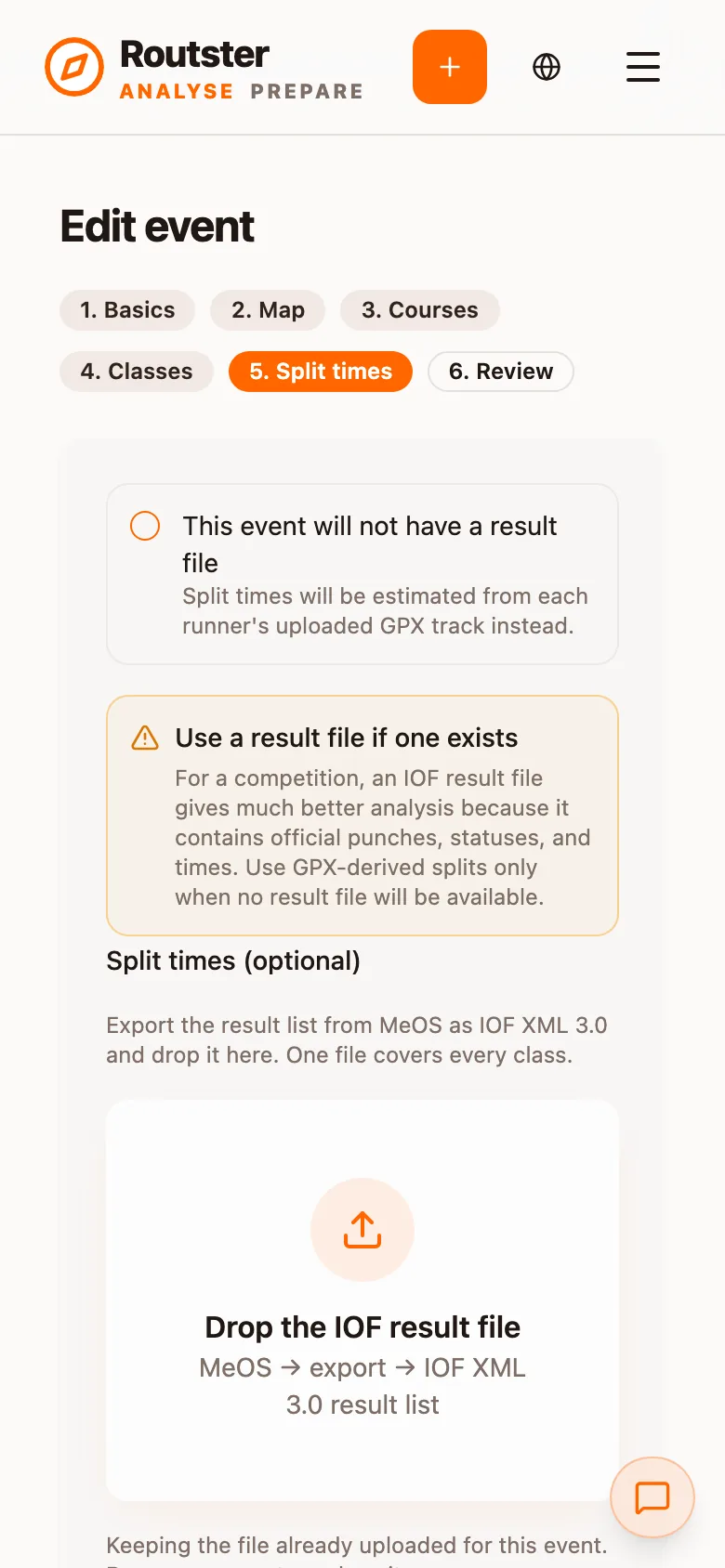
On the Split times step, tick This event will not have a result file. The choice is available for trainings and competitions. Analyse then estimates each runner's leg times from their uploaded GPX and feeds them into the same table, graphs, mistake views, and field comparison as official splits.
The field fills as runners upload tracks. A missing or uncertain control match stays missing and marks that runner DNF rather than inventing a time. If a runner passed a control, missed it, and returned later, they can open the advanced setting above the split table and choose the passage where they actually took the control. The correction changes only that runner's track.
Forking is read from the file
The wizard, step by step
Step 1. Basics
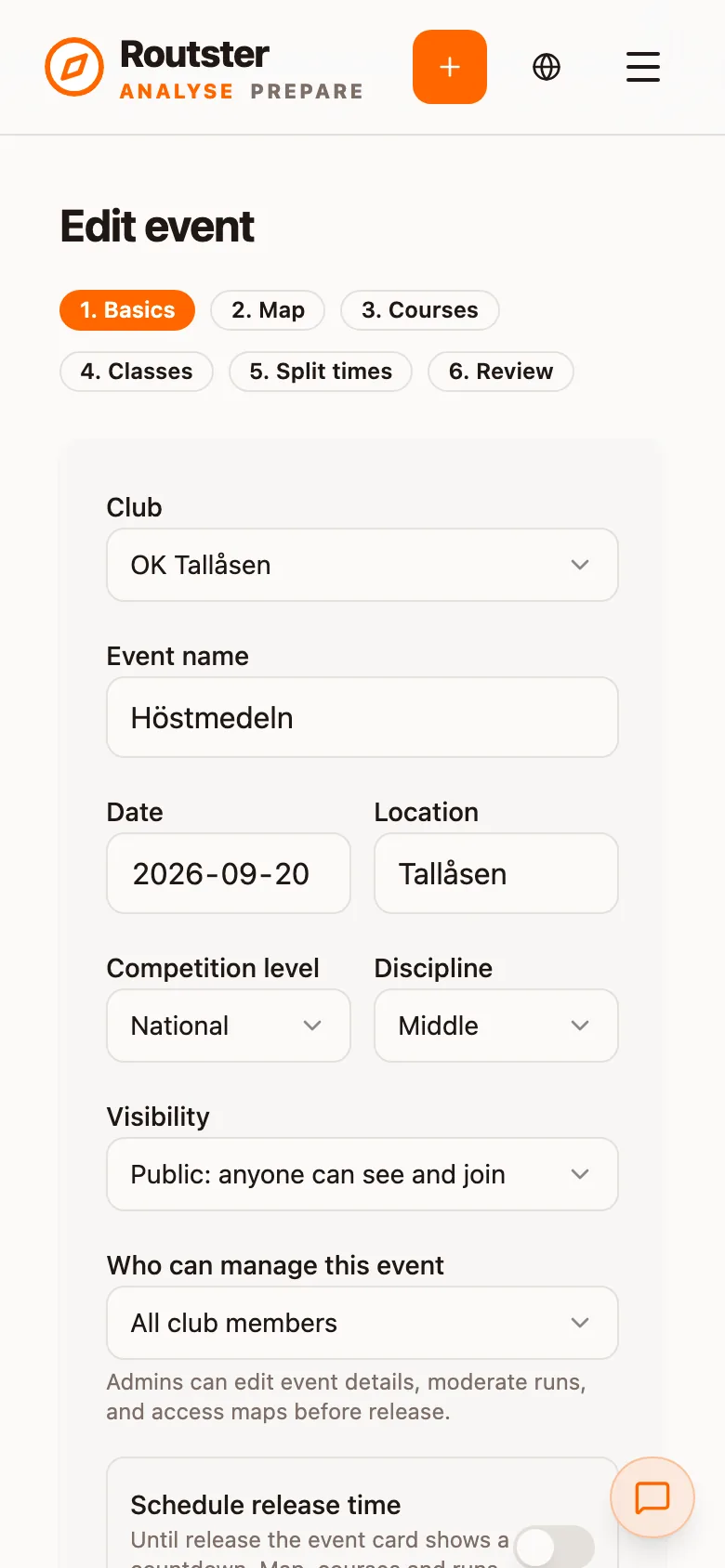
Name, date, location, and the club that owns the event. Then the settings that decide who sees it and when:
| Setting | Default | Description |
|---|---|---|
| Visibility | Public | Public, club only, or invite only. Invite-only events need no club; you invite by email address, set a shared access password, or both. An invitation is claimed automatically when that address signs in. |
| Admin scope | Creator only | Who can edit the event, moderate runs, and see the map before release. Widen it to club members if more than one person is running the event. |
| Competition level | Local | Training, local, regional, national or international. Training is what makes an event a training session rather than a race; it also unlocks the training-type field. |
| Discipline | Middle | Sprint, middle, long, ultra-long, relay, night or other. Sprint is not cosmetic: it enables the sprint analysis pipeline and changes the mistake detector's tolerances for tight corners. |
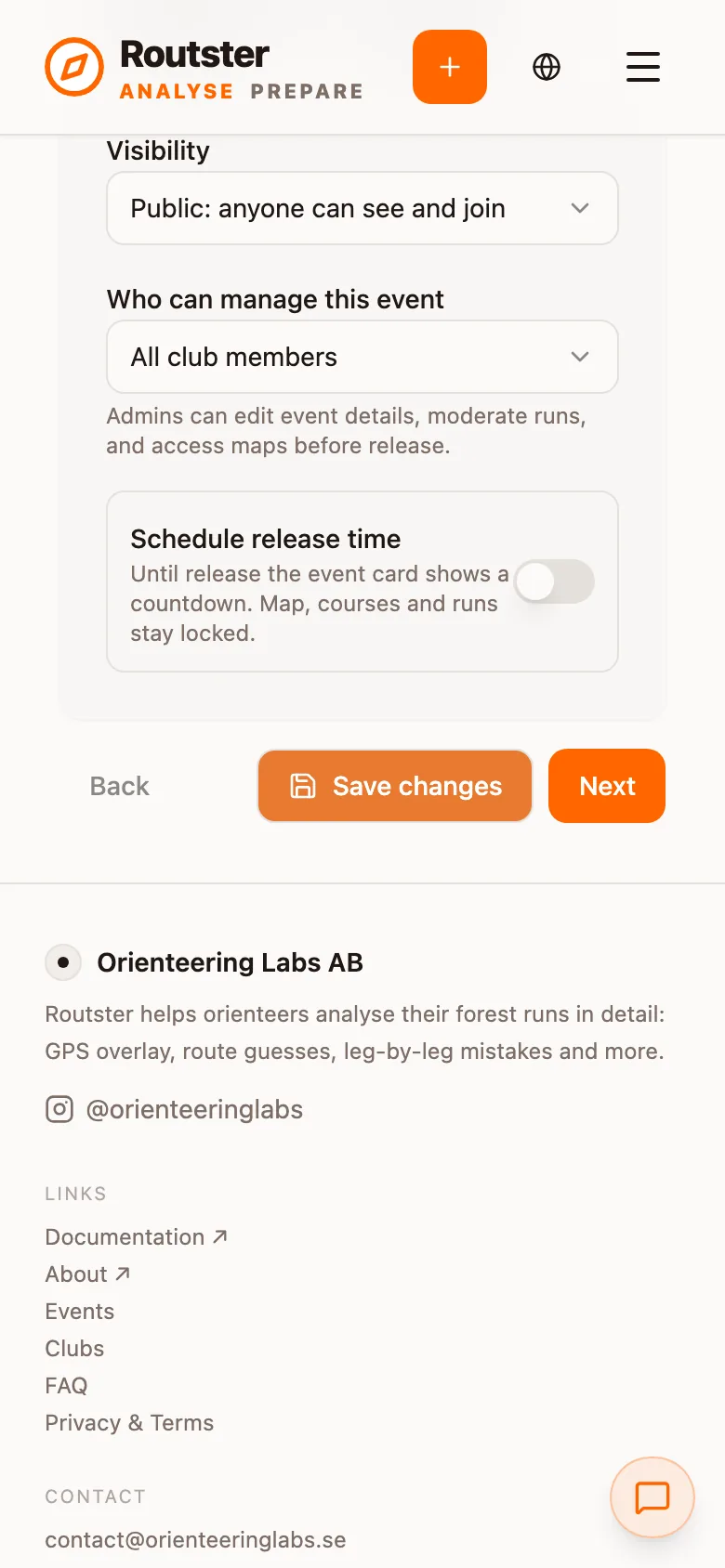
| Release at | Off | Rule 1 above. Set it to the last start. |
| Wait for split times before the AI review | On | Holds the AI coach until the event has splits, so its first review sees the whole field. Everything else in the analysis works immediately. Choosing the GPX fallback turns this off because splits arrive from runner tracks instead. |
Step 2. Map
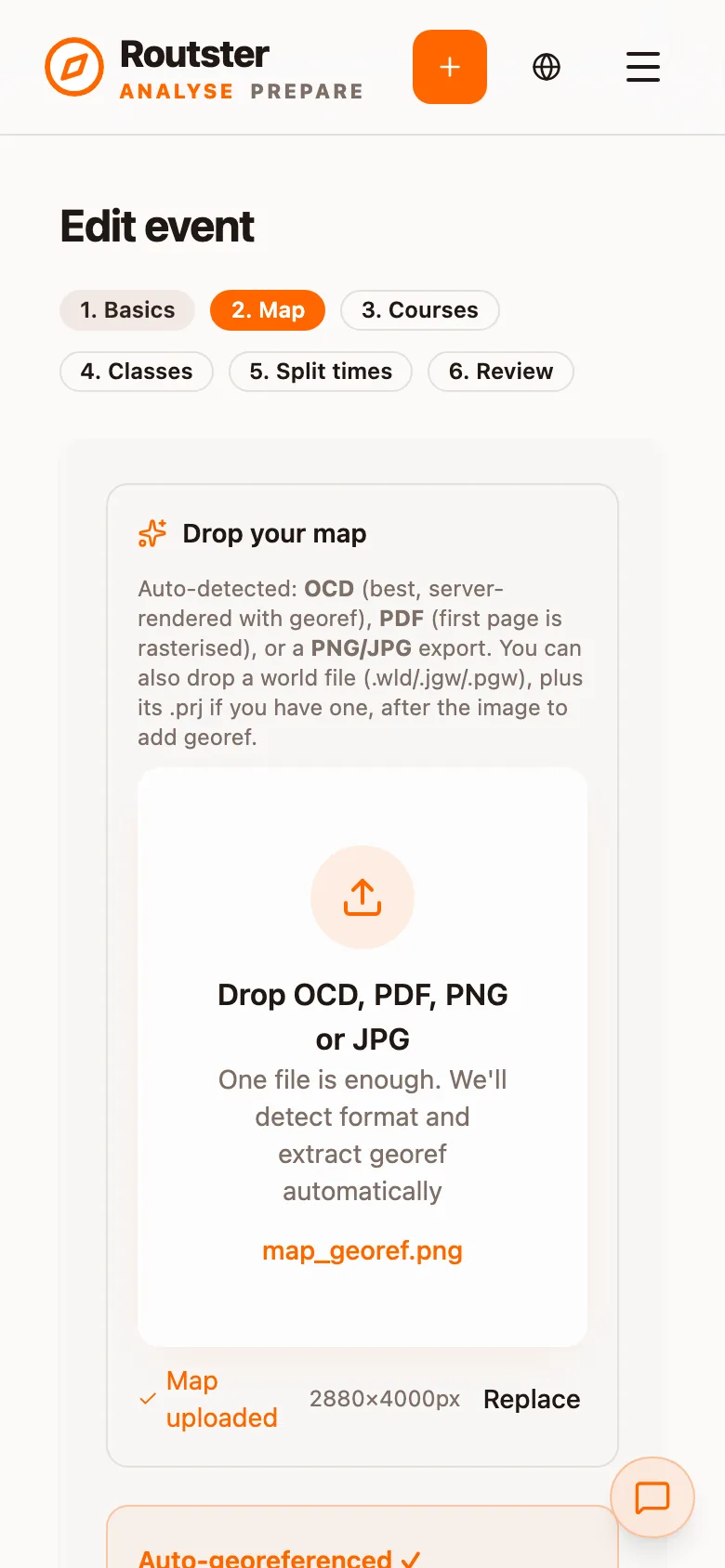
One drop zone, with format detection. What you upload decides how much work the rest of the wizard is:
| Format | What happens | Georeference |
|---|---|---|
| .ocd (and .omap / .xmap) | Uploaded and rendered server-side at 300 DPI by a worker running OpenOrienteering Mapper. A rough browser preview appears immediately so you can carry on working. | Automatic, from the file's own anchoring, when its coordinate system is one we recognise |
| The first page is rasterised in the browser | Manual, or from a world file | |
| .png / .jpg | Uploaded as-is | Manual, or drop a .wld / .jgw / .pgw / .tfw sidecar afterwards |
Upload the OCAD file if you have it. It is the only route that produces an automatic georeference, and the render is a 300 DPI raster.
The browser preview carries a real georeference, fitted from the OCAD file's own anchoring, so courses placed against it and extra layers aligned to it stay correct when the finished render replaces it. You can advance the wizard on the preview; publish on the finished render.
Once a transform exists, an overlay against satellite imagery is drawn to confirm the alignment (see Georeferencing).
The map step also holds the advanced section: extra layers, tiles and presentation maps. That is a topic of its own, covered in Layers, tiles and presentation maps.
Step 3. Courses
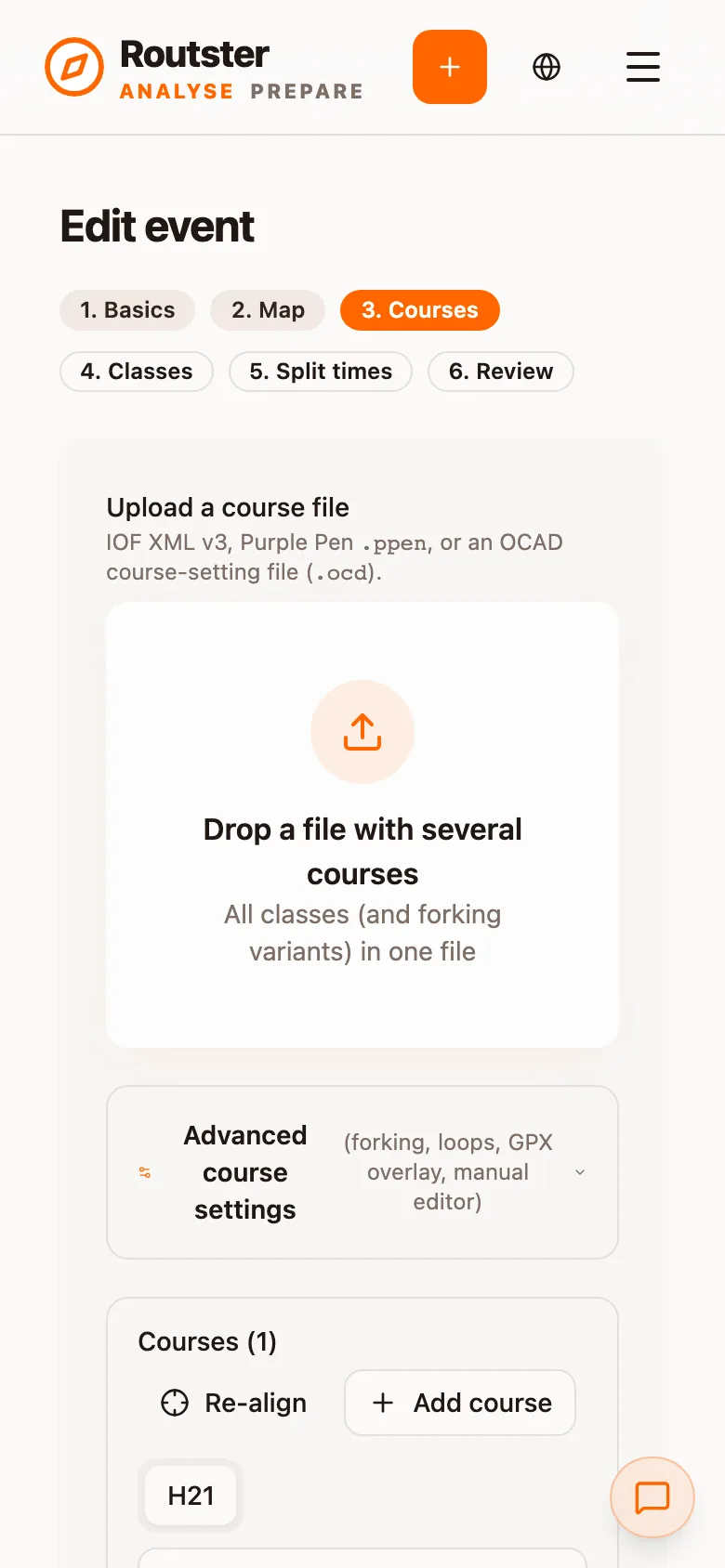
Upload a course file and the controls come with it. If you do not have one, place the controls by hand on the map.
A course is a sequence of controls; a class is a name that runs on one. Several classes routinely share a course. This step covers the courses only.
If the event uses loops (slingor) or forking, set that here. Both change how a runner's track is matched to the course.
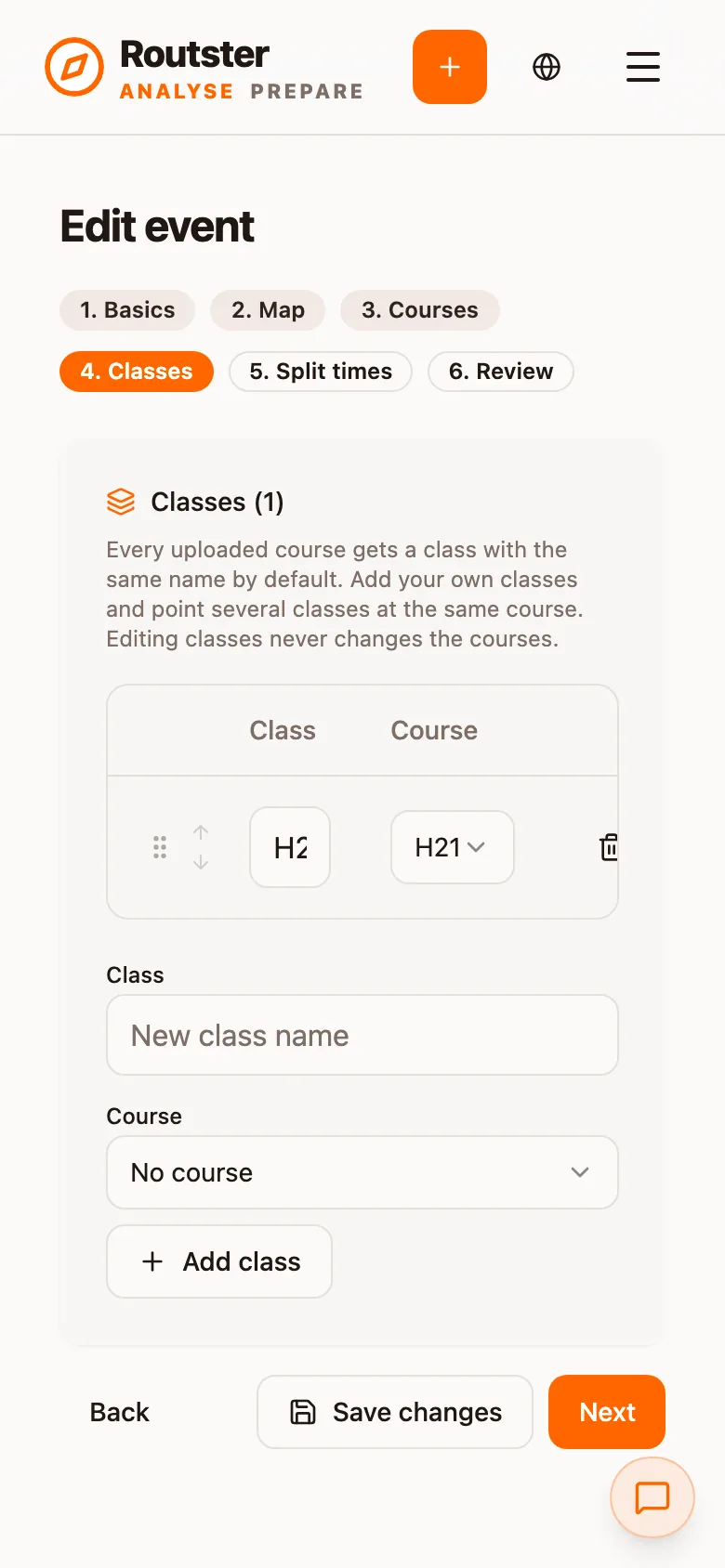
Step 4. Classes
By default the wizard creates one class per course with the same name. Where the course file declares classes as well as courses, those names and their course links are used instead.
Renaming a course carries the rename into the classes linked to it, and a deleted class does not reappear when you navigate back and forth.
Step 5. Split times
Rule 2 above. Drop the IOF result file, then map your classes onto the ones in it.
If no result file will exist, select the GPX-derived option instead. It is available at every competition level, but competitions show a warning because official timing is the substantially better source whenever it is available.
The step can be revisited. Publishing the event before the results exist and returning an hour later is the normal sequence: the event works from the moment the map and courses are up.
Step 6. Review
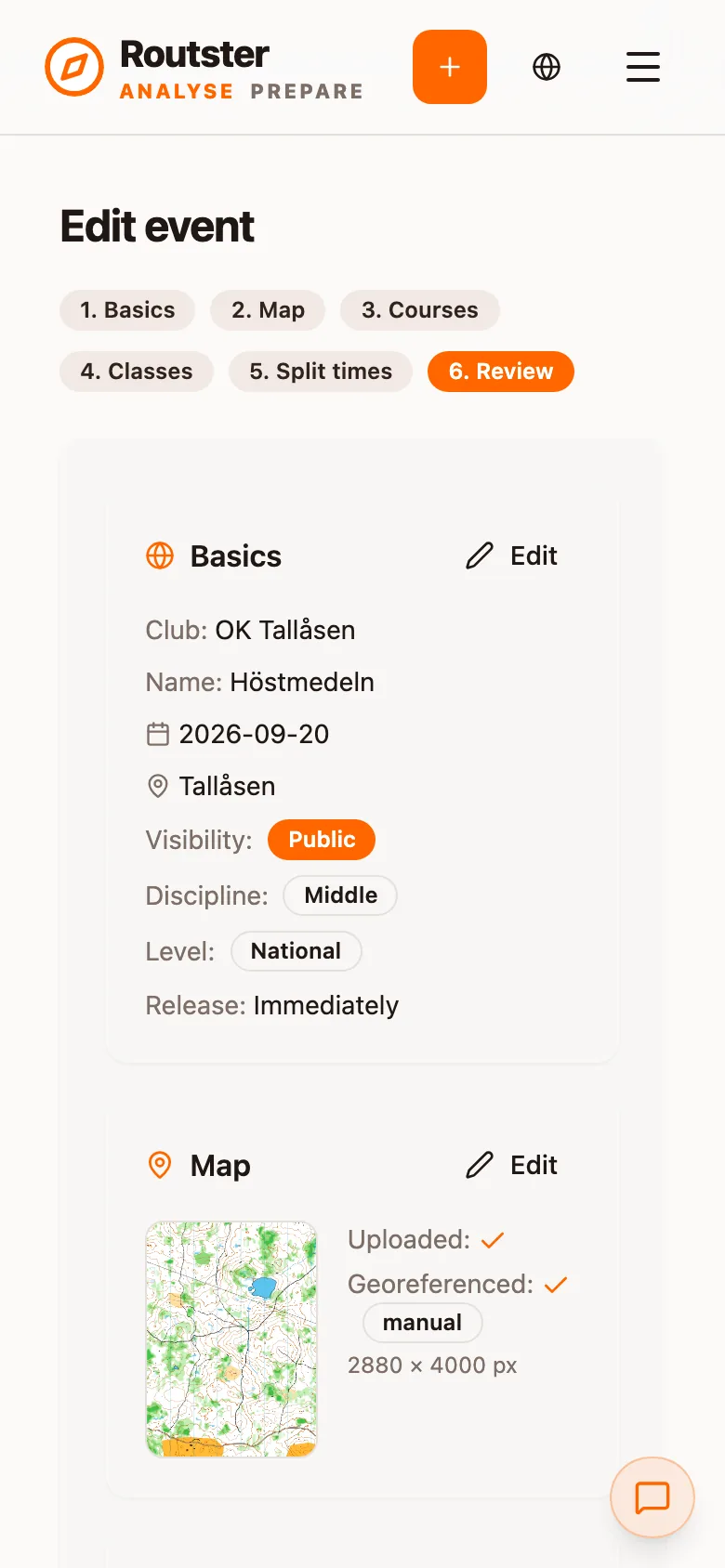
A last look before the event goes live. The three things worth checking are the georeference overlay, the control count per class, and the release time.
A publishing timeline that works
Week before   Create the event. Map, courses, classes.
              Set release_at = last start time on the start list.
              Confirm the georeference against satellite imagery.

Race morning  Adjust release_at if the start list moved.

Last start    Event unlocks itself. Nothing to do.

Last finish   Export IOF XML 3.0 from MeOS.
   + 1 hour   Drop it into the event's split-times step.
              Map the classes. Done.

That evening  Runners upload tracks. AI reviews run.
Common mistakes
| Mistake | What people see | Fix |
|---|---|---|
| Release time left off on a race | The map is public from the moment you save | Always set it; the last start is the answer |
| Release time set to the first start | Late starters can read the course | Last start, not first |
| Discipline left at middle for a sprint | No optimal paths, no ghost, no GPS snapping, and a mistake detector tuned for forest | Set the discipline before runners upload |
| A start list uploaded instead of a result list | The parser refuses it and says so | Export the result list variant |
| Splits uploaded days later | Everyone who looked early saw the weaker analysis, and the AI review never ran for them | Rule 2 |
| GPX mode used although a result file exists | The field sees estimates instead of official punches, statuses, and times | Turn off GPX mode and upload the IOF result list |
| A map with the course already printed on it | The course is drawn twice, once by the print and once by Routster | Tick “the course is already printed on this map” |
Editing after publishing