
Clubs
Finding, requesting and joining a club, and what its administrators can do: members, credits, revenue and the logo.
A club is a platform object, not an Analyse one. The same club owns events here and appears on the club leaderboards in Prepare. There is one registry and one moderation queue.
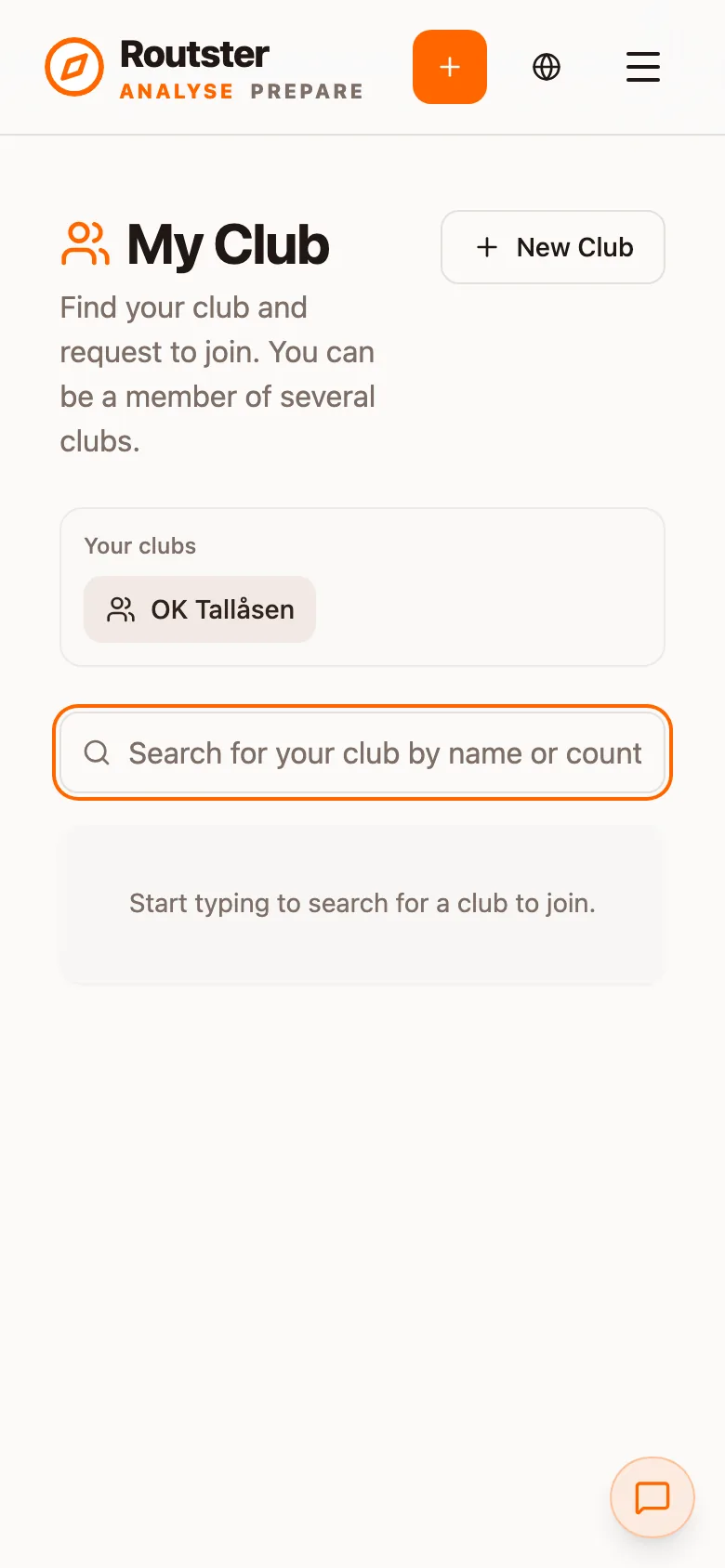
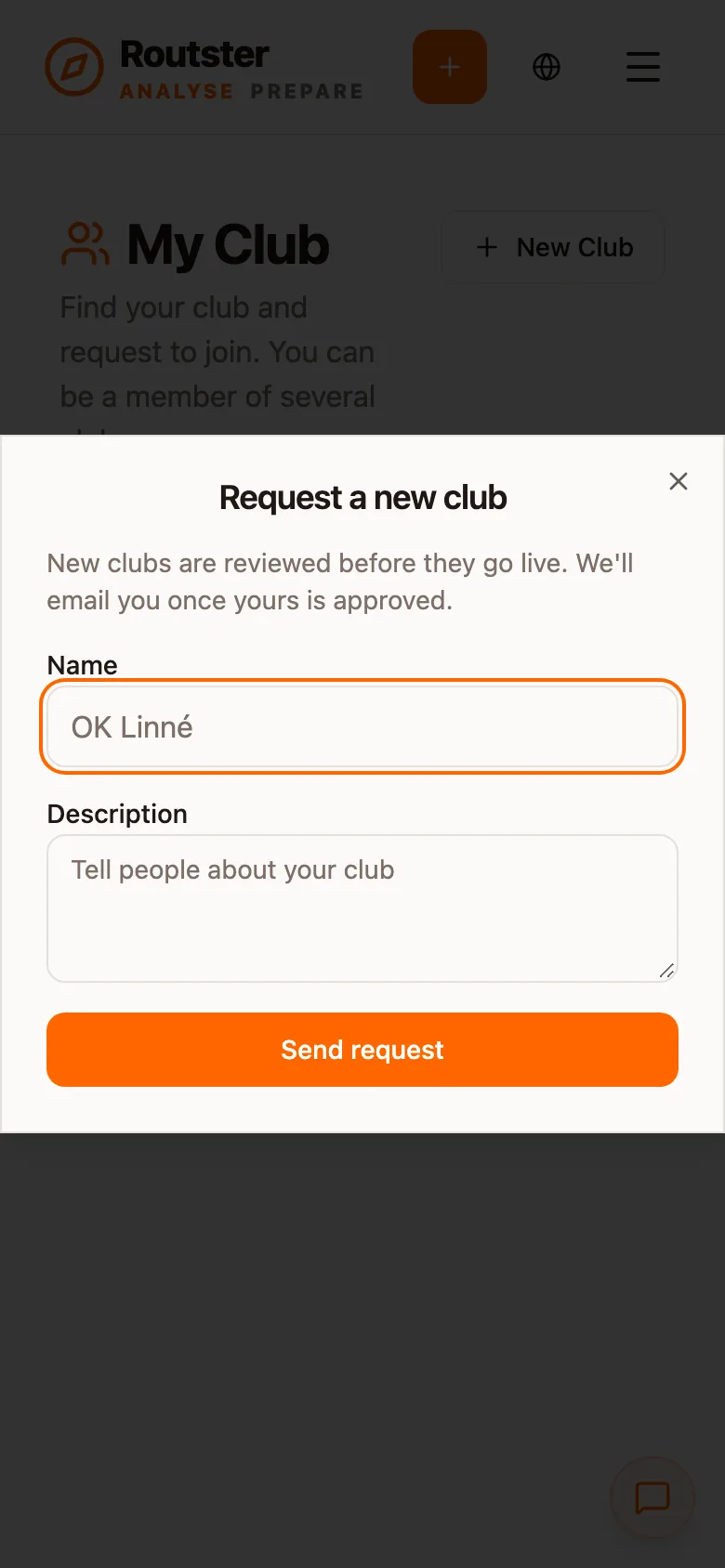
Getting a club created
Step 1. Search first
Step 2. Request it if it is not there
Why it is a request rather than a create
Joining
Depending on the club's join policy you either join directly or request membership and wait for an administrator. Administrators see Pending join requests on the club page and approve or decline them there. You can be a member of several clubs: Join another club on a club page takes you back to the search, and Leave removes you.
The club page
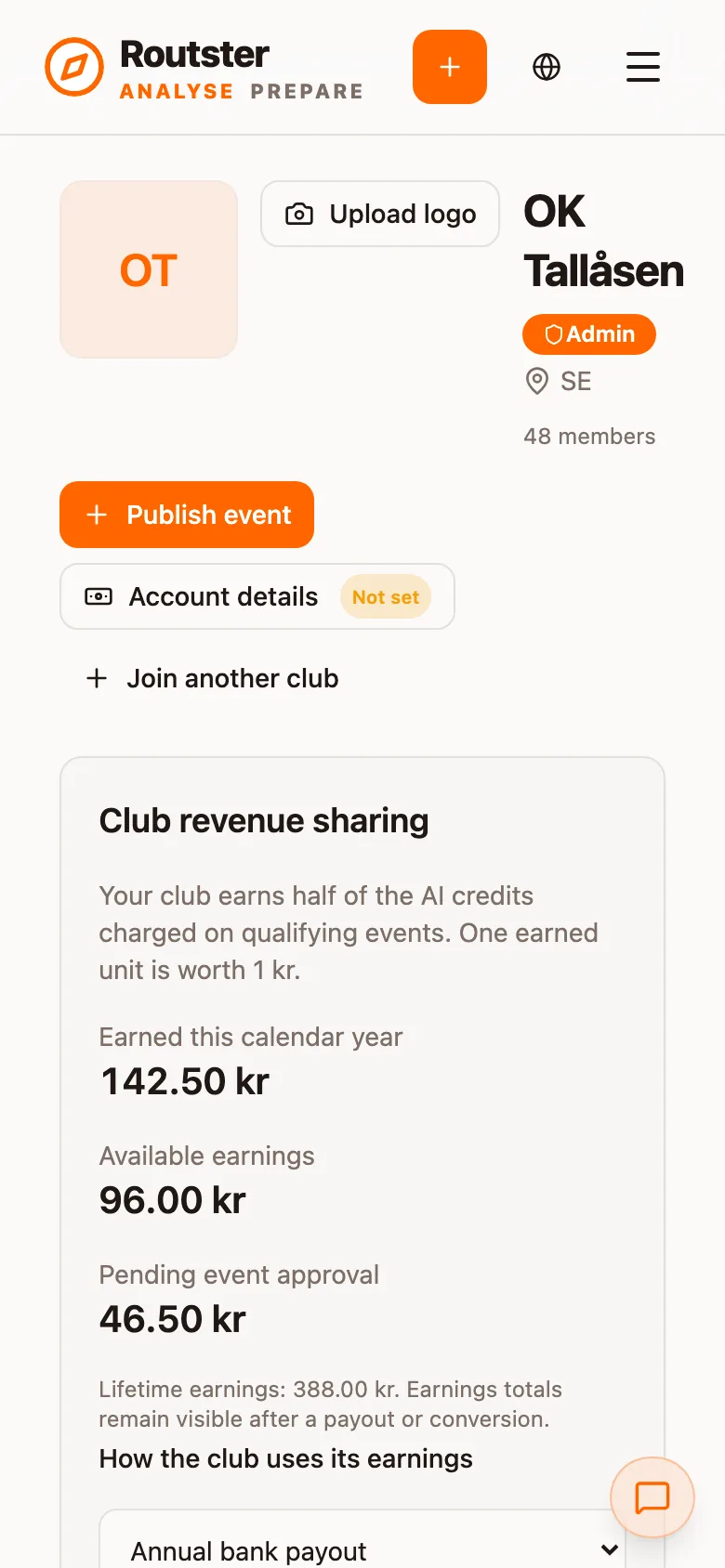
The club page shows the club, its member count and its events. A club's events are for its members, so someone who is not a member does not see them. Members get Publish event, which starts the event wizard with the club already chosen.
Administering a club
An administrator sees more on the same page and can:
- Upload and remove the club logo (Upload logo).
- Register the club's bank details under Account details, marked Not set until done. The payout needs them; see Revenue share.
- Approve, decline and remove members under Pending join requests and Members, and promote a member to administrator.
- Change Club settings, and create events owned by the club.
- See every club event before its release time, when the event's admin scope is set to club members.
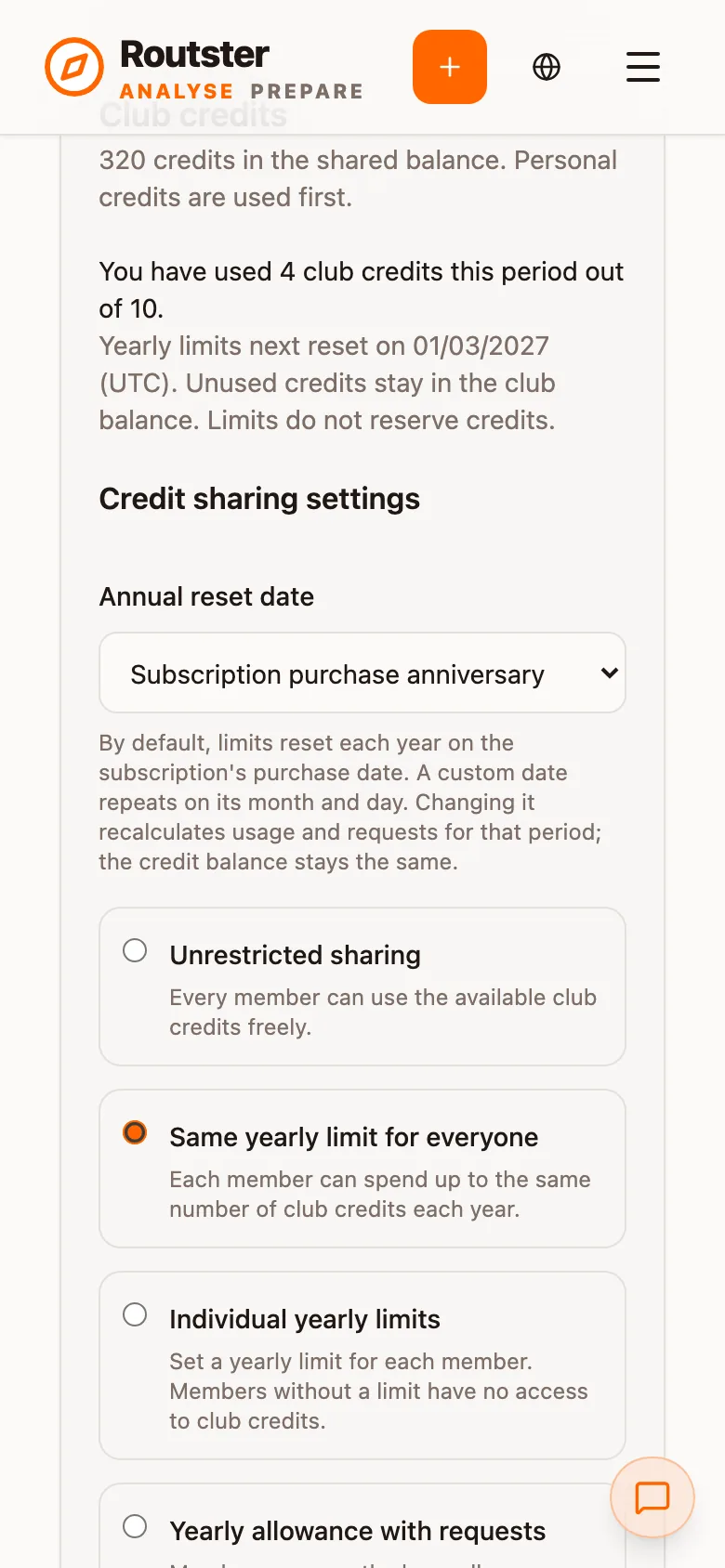
Club revenue and credits
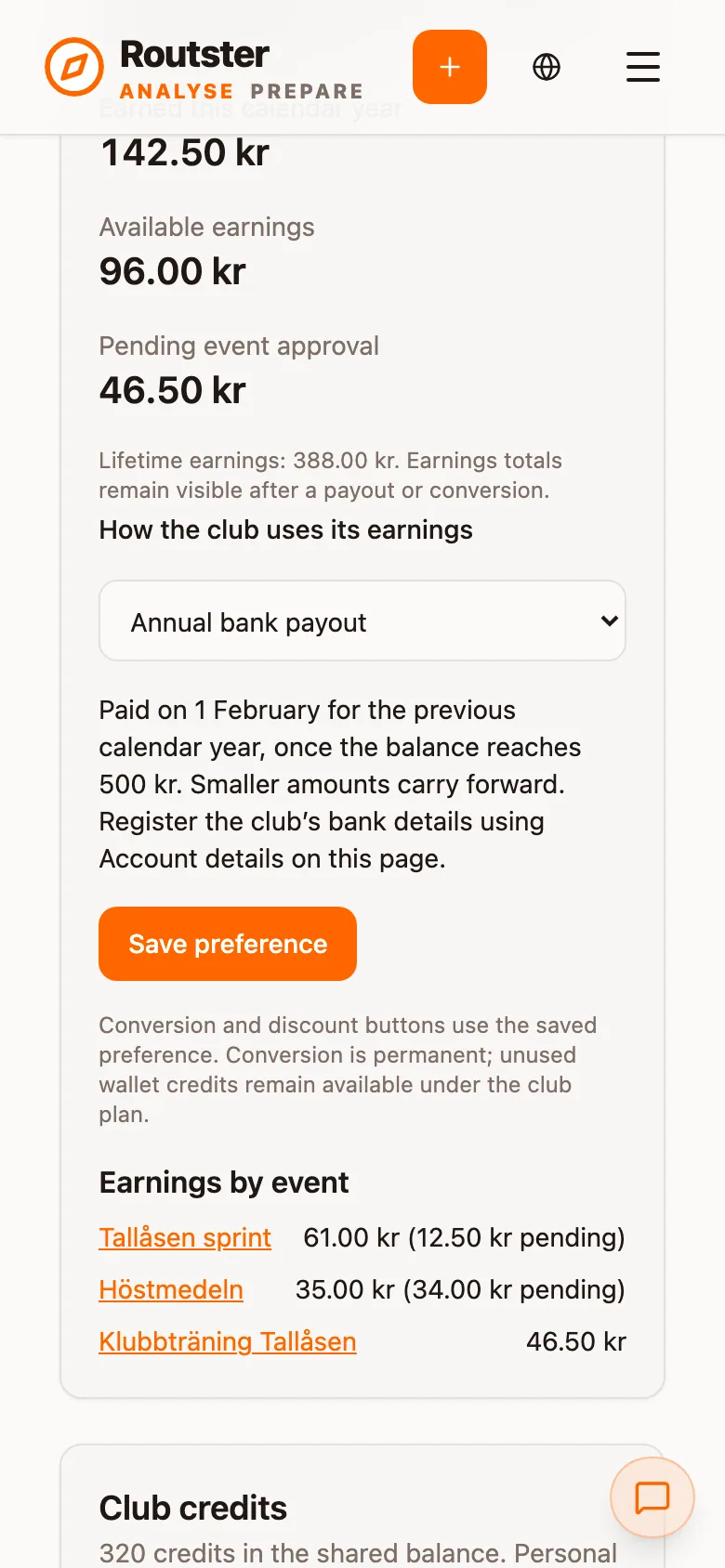
Club revenue sharing shows what the club has earned this calendar year, what is available and what is still Pending event approval, with Earnings by event underneath. Where the money goes is chosen under How the club uses its earnings, for example Annual bank payout. The conditions an event has to meet to earn anything are in Revenue share.
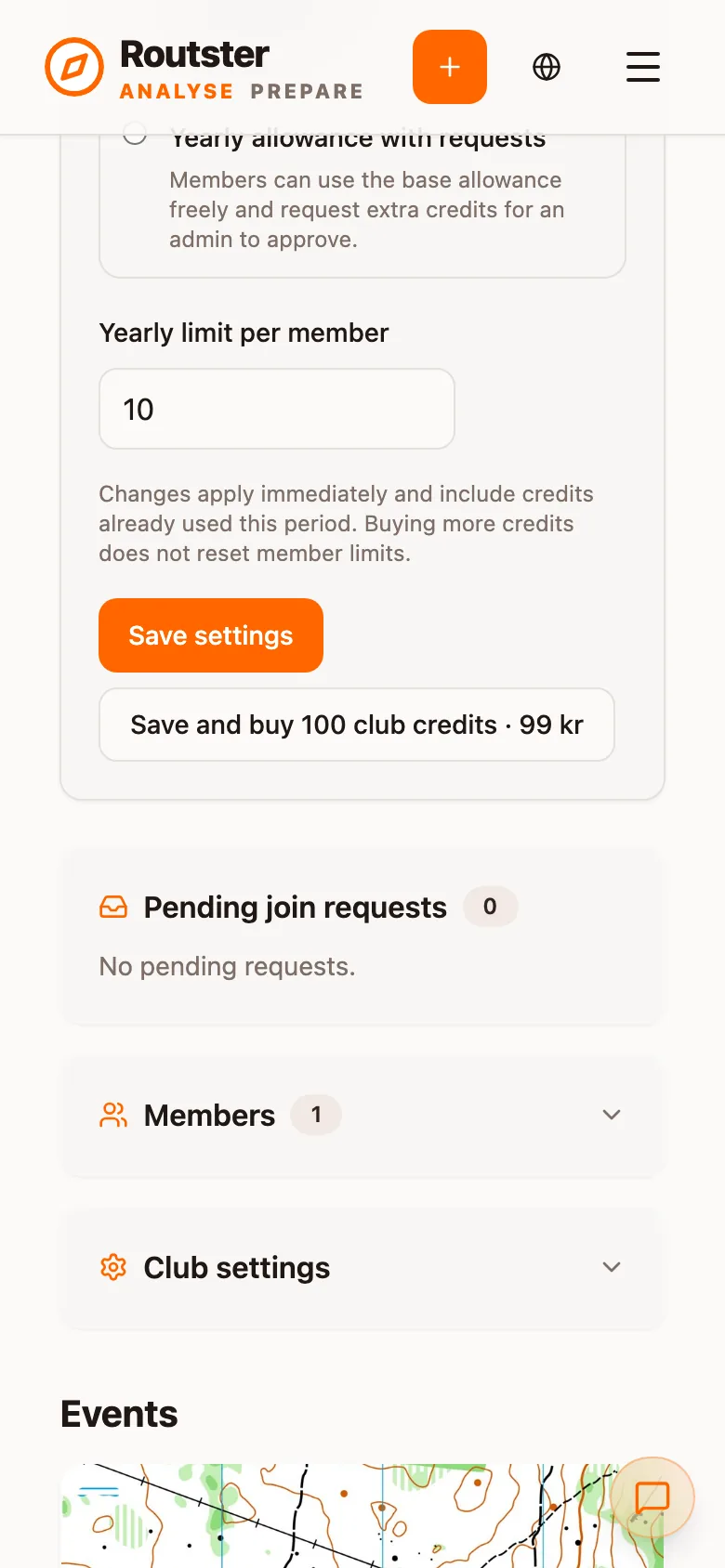
A club with a subscription also has Club credits, a shared balance that the AI coach draws on after a member's personal credits. An administrator decides how members share it under Credit sharing settings:
| Setting | What it means |
|---|---|
| Unrestricted sharing | Every member can use the available club credits freely. |
| Same yearly limit for everyone | Each member can spend up to the same number of club credits each year. |
| Individual yearly limits | A yearly limit is set for each member. A member without a limit has no access to club credits. |
| Yearly allowance with requests | Members use the base allowance freely and can ask an administrator to approve extra credits. |
Annual reset date decides when the limits start over: by default on the subscription's purchase anniversary, or on a custom date. Unused credits stay in the club balance, and a limit does not reserve credits.
The club logo
The logo is drawn small, beside a club's name in lists and as a marker option in the replay (see The map and its settings). It appears when the club is approved and has a logo on file. A club with no logo shows its initials in a square. The same registry feeds Analyse and Prepare, so changing the logo changes it everywhere at once; there is no per-product override.
| Works well | Works badly |
|---|---|
| A square or near-square crop | A wide banner, which shrinks to an illegible sliver |
| Solid shapes that survive at 16 px | Fine lines and small lettering |
| A transparent or white background | A dark or coloured background |
The logo is scaled to fit, never cropped or recoloured, and drawn on white. The uploader has a cropper, which is the easier route if your source file is not already square. More in Clubs in Prepare.
Club events
An event owned by a club can be set to club-only visibility, in which case only members see it. The organiser also chooses whether the event's admins are just the creator or every club member, which decides who can edit it and who can see the map before release. For a club training series, widening the admin scope to club members is usually right: it means the upload does not wait on one person being available.